
4.1 Git and GitLab
Introduction
Section titled “Introduction”Git and GitLab are foundational tools in modern software engineering, essential for managing code and collaborating effectively in teams. While Git provides the core technology for version control (e.g., tracking changes and maintaining project history) GitLab offers a complete platform that extends these capabilities into a complete DevOps lifecycle. Together, they enable developers to work more efficiently, from local development to automated testing and deployment. By the end of this chapter, you will have a solid understanding of both the Git command line and the key features of GitLab, including repository management, branching strategies, and CI/CD pipelines.
Reference Materials
Section titled “Reference Materials”Here are some useful references for learning more about Git and GitLab:
- GitLab Documentation GitLab’s official documentation covers all aspects of using the platform, including setting up repositories, using CI/CD pipelines, managing projects, and more. It’s regularly updated to reflect the latest features and best practices.
- Pro Git Book This free online book, authored by Scott Chacon and Ben Straub, offers an in-depth introduction to Git. It’s an excellent resource for both beginners and experienced users looking to deepen their understanding of Git concepts and workflows.
- Git Documentation The official Git documentation provides comprehensive and detailed guidance on using Git, from basic commands to advanced workflows. It includes tutorials, examples, and a full reference manual. These references have been useful in writing this chapter, as they provide the foundational knowledge and practical skills working with Git and GitLab.
What is GitLab?
Section titled “What is GitLab?”Git is a distributed version control system (VCS). Think of it as a tool that tracks and manages changes to files and code. It allows multiple people to work on a project simultaneously without overwriting each other’s work. It also keeps a complete history of the project, so you can revert to any previous version if needed. Git operates primarily on your local machine, creating a complete copy of the project and its history. This allows developers to work offline and merge changes later.
Git is a tool, while GitLab is a service:
- Git is the core technology — the command-line software you install on your computer to perform version control tasks like committing changes, creating branches, and merging code. It’s the engine.
- GitLab is a web-based platform that uses Git. It provides a remote location to host your Git repositories in the cloud. It’s the infrastructure that extends Git’s capabilities. While Git handles the version control, GitLab provides a complete DevOps platform with a wide range of additional features that go beyond simple code hosting. The easiest way to explain the use of Git is to begin by discussing a world without Git.
Life Without Git: The Traditional Version Control Problem
Section titled “Life Without Git: The Traditional Version Control Problem”Imagine trying to collaborate on a project without a tool like Git. In such a scenario, version control often relies on manual processes, such as emailing documents to team members. While this might seem manageable for small teams or simple projects, it quickly becomes chaotic as the number of contributors grows.
Without Git, every team member might work on their own copy of a file. When changes are made, those updates must be manually merged — a process prone to confusion and errors. If multiple people edit the same section of a document, it becomes difficult, if not impossible, to reconcile conflicting changes accurately. This system doesn’t scale well, especially for larger teams or projects.
Now imagine this problem multiplied in a software development environment. How could you manage collaboration among 50 developers working on tens of thousands of lines of code? The task would be overwhelming and inefficient, with significant risks of lost work, inconsistencies, and errors.
Git addresses these challenges by providing a structured and scalable way to manage changes. It allows multiple contributors to work simultaneously, track every version of the codebase, and resolve conflicts systematically. This makes Git an essential tool for modern development teams, enabling efficient collaboration even on the most complex projects.
We are going to begin using Git and GitLab with Markdown as code. This is useful to avoid introducing complexity by using C/C++ or Rust. This is also useful because markdown is used by Git to format support documentation in git repositories.
Markdown
Section titled “Markdown”Markdown is a lightweight markup language designed to make writing formatted text simple and intuitive. Created by John Gruber in 2004, Markdown is widely used for writing content that can be easily converted to HTML or other formats. Its key strength lies in its simplicity — Markdown uses plain text syntax that is easy to read and write, even without specialised software.
Markdown is essential in the world of Git because it allows developers to maintain “Documentation as Code”. Every professional repository begins with a README.md file, which serves as the entry point and manual for the project. By using Markdown, documentation can be version-controlled, branched, and merged just like the source code itself. In fact, this very book is written entirely in Markdown (using both standard .md and extended .mdx formats) to ensure that the content remains as portable and manageable as the code it describes.
Markdown is ideal for creating content for blogs, documentation, notes, or even books. Unlike rich-text editors, Markdown focuses on the content rather than the presentation (similar to LaTeX). This makes it particularly popular among developers, writers, and technical professionals who value distraction-free writing with consistent formatting.
Basic Markdown Syntax
Section titled “Basic Markdown Syntax”Markdown uses simple symbols and conventions for formatting. Below are some examples of common Markdown syntax:
- Headings: Use the # symbol to create headings, e.g., #Heading 1, ## Heading 2, ### Heading 3.
- Emphasis: Use * or _ for italic text (e.g., *text in italics*) (By the way this works in Google docs using the autocorrect if you type *test*, Google Docs will autoformat the text test in italics). Strikethrough using ~~strikethrough~~.
- Lists: Create an unordered list by having items on individual lines with a -, *, or + in front of each item. An ordered list is created by typing numbers followed by a full stop.
- Code: You can use backticks ` around code to create inline code syntax, or you can use triple backticks ``` before and after a block of text.
\`\`\` printf("Hello, world!\n");```
Markdown files are portable and can be viewed in any text editor . They integrate seamlessly with many platforms, including GitHub, GitLab, and content management systems like WordPress. Additionally, tools exist to convert Markdown into formats like HTML, PDF, or even Word documents. This format will be useful in the next section for editing GitLab files in the online editor.
Here is a small demonstration of the use of markdown in Google Docs. You can see as I type the markdown it is correctly formatted by Google Docs:

Getting Started with GitLab: Create a Private Project
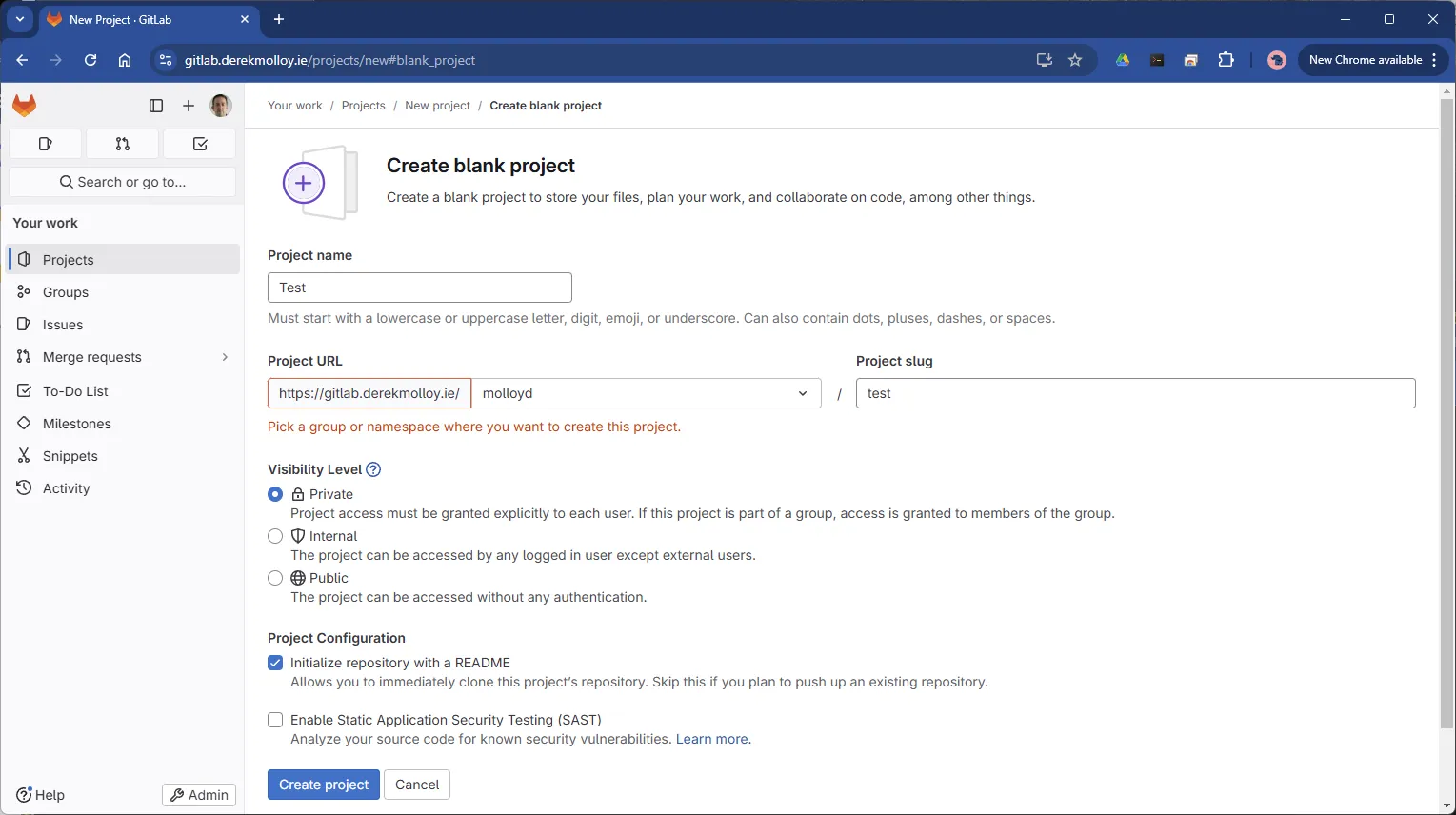
Section titled “Getting Started with GitLab: Create a Private Project”On the GitLab server you can go into the Create Project settings. Make sure to give it a name (e.g., Test) and choose your username (molloyd in my case) and then add a README to give some information about the project, as in Figure 1.
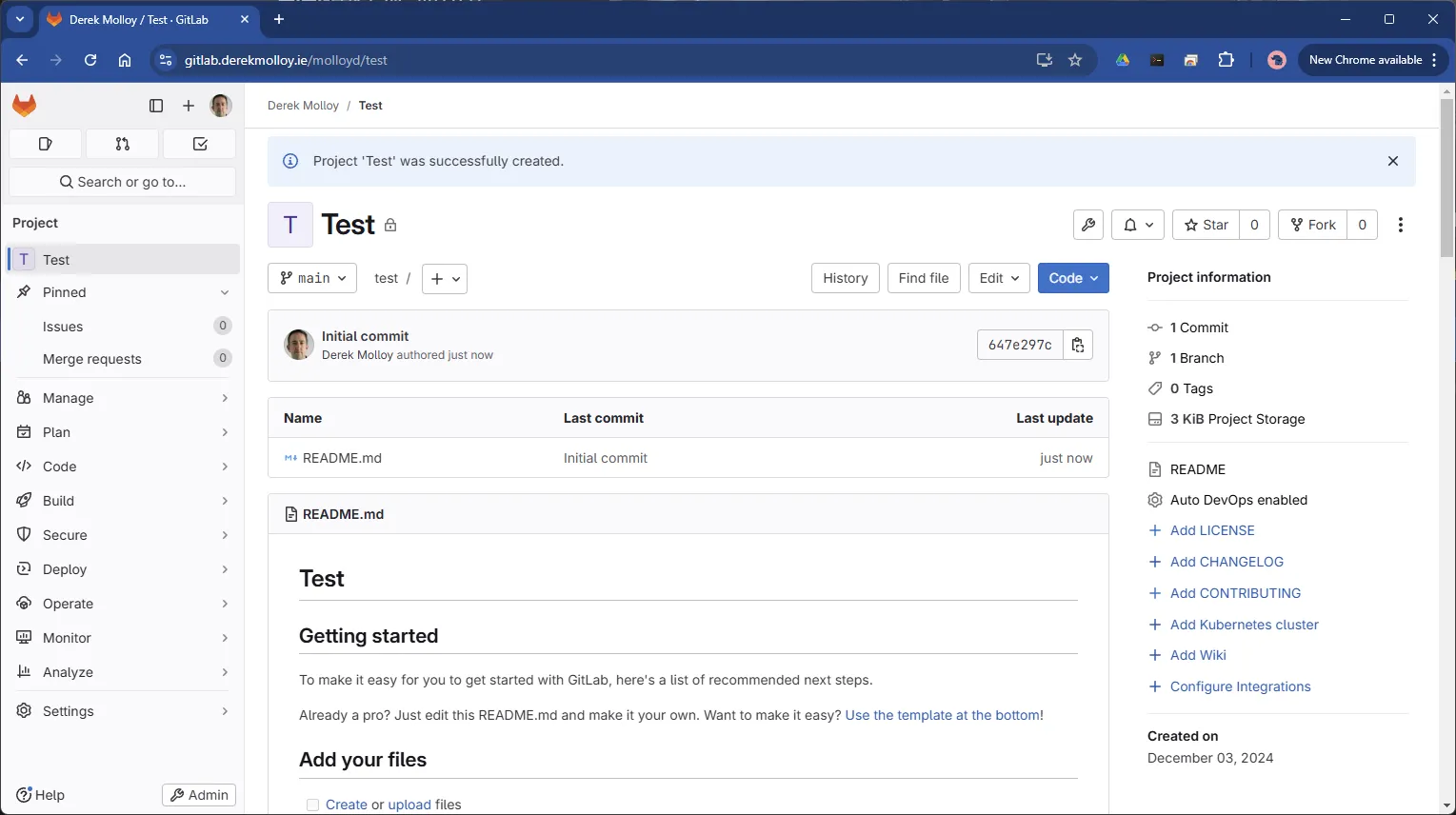
Clicking Create Project results in a blank project with a README.md as in Figure 2.
GitLab provides a basic editor that allows you to edit the Markdown text. Click on the README.md file and then press Edit -> Edit Single File. Turn on preview to see the output on the right-hand side, as in Figure 3.
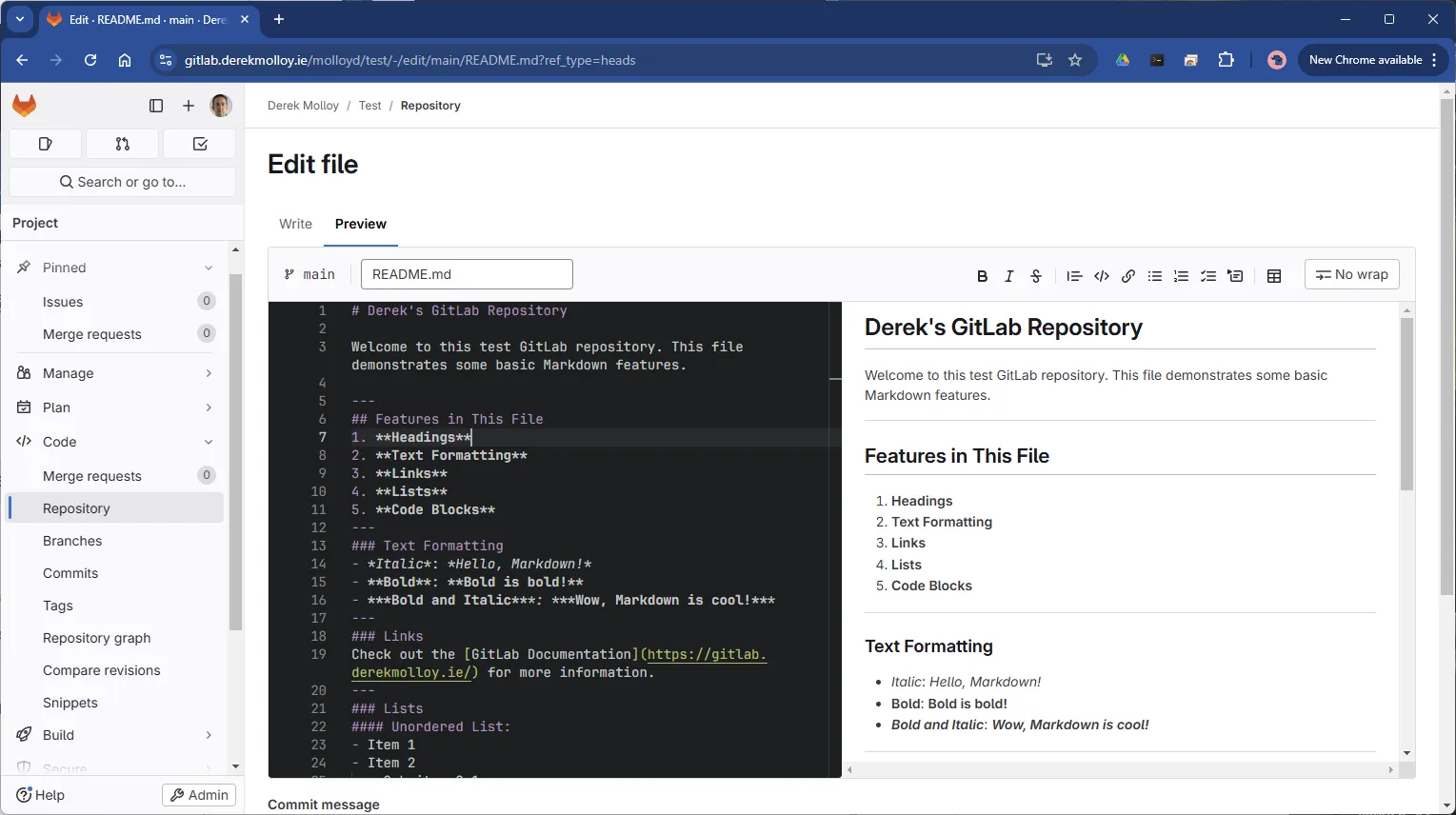
You can use this markdown example for inspiration (press the copy button on the top right-hand side):
# Derek's GitLab Repository
Welcome to this test GitLab repository. This file demonstrates some basic Markdown features.
---## Features in This File1. **Headings**2. **Text Formatting**3. **Links**4. **Lists**5. **Code Blocks**---### Text Formatting- *Italic*: *Hello, Markdown!*- **Bold**: **Bold is bold!**- ***Bold and Italic***: ***Wow, Markdown is cool!***---### LinksCheck out the [GitLab Documentation](https://gitlab.derekmolloy.ie/) for more information.---### Lists#### Unordered List:- Item 1- Item 2  - Sub-item 2.1  - Sub-item 2.2#### Ordered List:1. First step2. Second step3. Third step---### CodeInline code example: `printf("Hello, world!\n");`
Code block example:```cpp#include <iostream>int main() {    std::cout << "Hello World!\n";    return 0;}
Play around and edit the file! When finished, commit the changes by adding a more useful commit message…
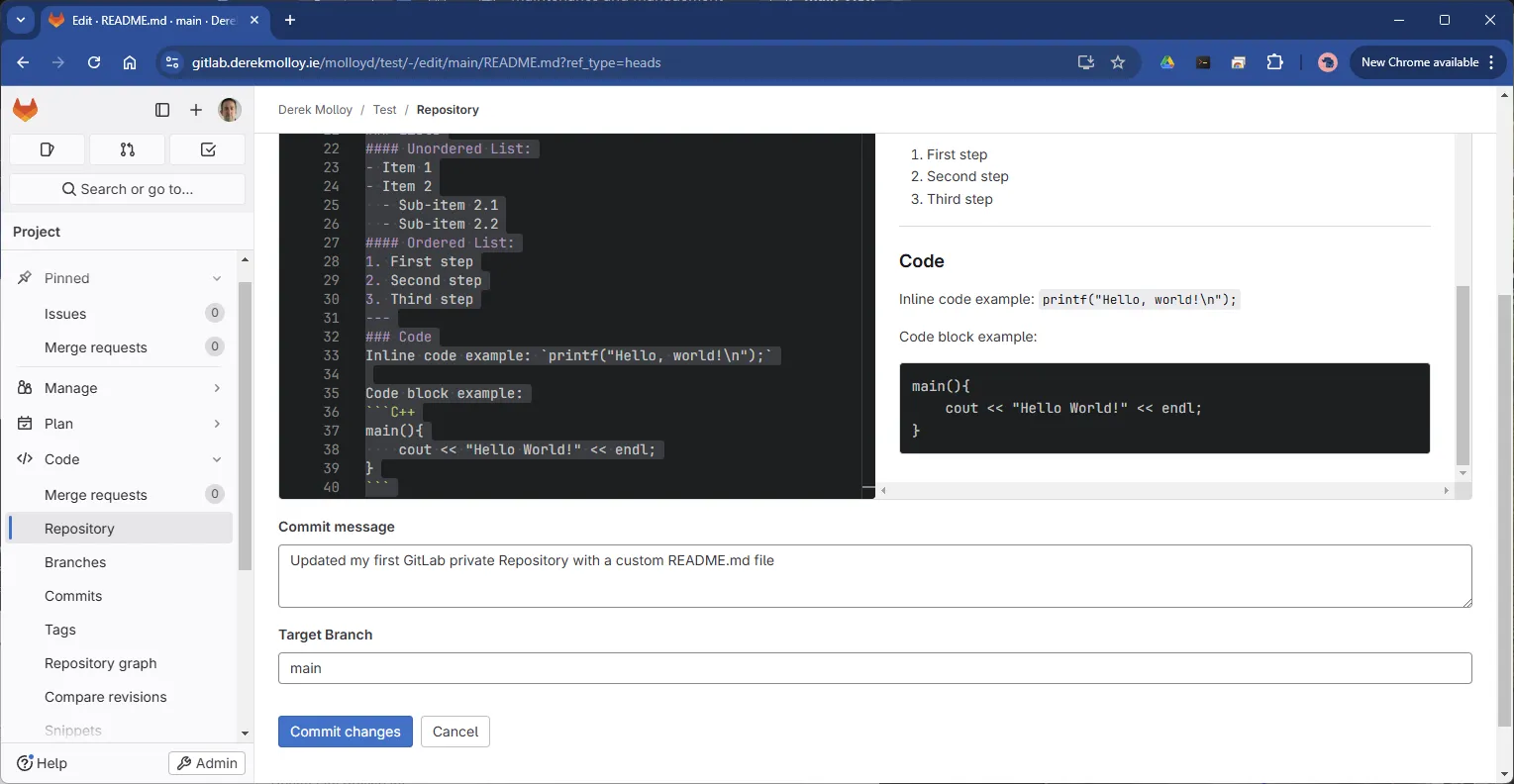
Readme.md file.
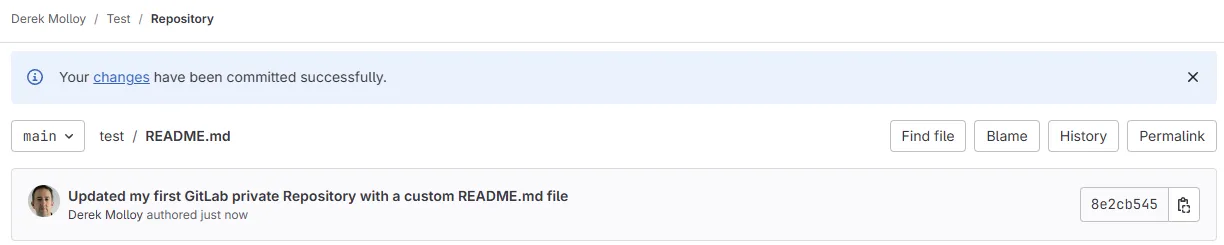
You should see the message similar to Figure 5 after you press the “Commit changes” button in Figure 4.
Command Line Git
Section titled “Command Line Git”While the GitLab web interface is excellent for managing projects and performing quick edits, the real power of Git is found in the command line. This is where most developers spend their time, as it allows for a faster, more flexible, and more powerful workflow.
Installing Git
Section titled “Installing Git”Before you can use Git on your computer, you must ensure it is installed. Follow the instruction for your operating system:
- Linux (Ubuntu/Debian): Open your terminal and run
sudo apt install git. - Windows: Download and run the “Git for Windows” installer from git-scm.com.
- macOS: Open your terminal and run
git --version; if it isn’t installed, you will be prompted to install the “Xcode Command Line Tools”.
First-Time Configuration
Section titled “First-Time Configuration”Before you make your first commit, you must introduce yourself to Git. This information is attached to every commit you make, allowing teammates to see who made which changes. Run the following commands in your terminal, replacing the details with your own:
git config --global user.name "Your Name"git config --global user.email "your.email@dcu.ie"To use Git effectively on your local machine, you must understand how your files move through different “stages” or “areas”. This mental model is crucial for the Virtual Lab: Git Flow in the next section.
The Four Stages of Git
Section titled “The Four Stages of Git”A Git project involves four main environments, three on your local computer and one on a remote server:
- Working Directory: This is the folder on your computer where you can see and edit your files. When you create or modify a file, those changes exist only in your working directory until you “add” them.
- Staging Area: This is a holding area for changes you have marked as ready to be committed. Think of it as a “pre-commit” area or a “shopping basket” where you pick which changes you want to include in your next snapshot.
- Local Repo (Local Repository): This is your personal database of all the commits you have made. When you “commit” your changes, they are moved from the staging area into this repository, and they are assigned a unique identifier (a hash).
- Remote Repo (Remote Repository): This is the shared copy of the project hosted on a server, such as GitLab. To share your local work with others, you must “push” it to the remote repository.
The Core Git Commands
Section titled “The Core Git Commands”The following commands are the “bread and butter” of Git. You will use these in the virtual lab to move a file through its lifecycle:
git status: The most important “observation” command. It tells you exactly which files are modified, which are staged, and what your next step should be. Run this often!git add: This command moves changes from your Working Directory to the Staging Area. It tells Git, “I want to include this change in the next commit.”git commit: This command takes the changes in your Staging Area and records them as a permanent snapshot in your Local Repo. Every commit requires a message that explains what was changed.git push: This command uploads the commits from your Local Repo to the Remote Repo. This makes your work visible to your teammates on GitLab.git pull: This command downloads any new commits from the Remote Repo and merges them into your Local Repo and Working Directory. It is equivalent to runninggit fetchfollowed bygit mergein a single step.git fetch: Downloads new commits from the Remote Repo but does not merge them into your current branch. This lets you inspect what teammates have done — usinggit logorgit diff— before deciding to integrate their changes. Usegit fetchwhen you want to look before you leap; usegit pullwhen you are confident you want to merge immediately.git log: Shows the commit history of the repository. Runninggit log --oneline --graphproduces a compact, visual representation of the branch and merge structure — the same information the Virtual Lab graphs display on screen. Run this often to understand the shape of your history.git diff: Shows what has changed but has not yet been staged. Rungit diff --stagedto see what has been staged but not yet committed. Together withgit status, this gives you complete visibility into your work before every commit.git stash: Temporarily shelves changes you are not ready to commit, returning your Working Directory to the last committed state. Use it when you need to switch branches or pull updates mid-task. Rungit stash popto restore the saved changes afterwards.
Starting a Project: clone vs init
Section titled “Starting a Project: clone vs init”There are two ways to start a local Git repository:
git clone <url>: This is the most common method. It downloads an existing project from a server (like GitLab) to your computer, automatically linking the two.git init: This creates a brand-new, empty repository in your current folder. You would use this if you have local code that isn’t on a server yet.
Understanding this flow (from editing a file to sharing it on GitLab) is the first step in becoming a proficient developer. To this end we will simulate the workflow of Git in a virtual lab.
The .gitignore File
Section titled “The .gitignore File”Not every file in your project folder should be tracked by Git. Compiled binaries, build output, editor workspace files, and large auto-generated assets clutter the repository and, in the case of compiled binaries, change on every build without carrying any meaningful history. The .gitignore file, placed in the root of your repository, tells Git which files and folders to leave untracked.
# Compiled object files and binaries*.o*.out*.elf*.bin*.hex
# Build directoriesbuild/cmake-build-*/
# Rust build output (can be several GB)target/
# VS Code workspace settings.vscode/
# macOS filesystem metadata.DS_Store
Lines beginning with # are comments. Patterns like *.o match any file with that extension; patterns ending with / match entire directories. Once a file is listed in .gitignore, git status will no longer show it as untracked and git add . will not accidentally include it.
Private Repositories
Section titled “Private Repositories”Cloning a Private Repository
Section titled “Cloning a Private Repository”To work on your local machine, you will need to “clone” your repository. For private projects, you must generate a Personal Access Token (PAT) to authenticate if SSH is not available. It is important that all student assignment work uses private repos only so that your private assignment work is not visible to others.
- In GitLab, go to User Settings -> Access Tokens.
- Create a token with
read_repositoryandwrite_repositorypermissions. - Copy the token immediately; you won’t be able to see it again.
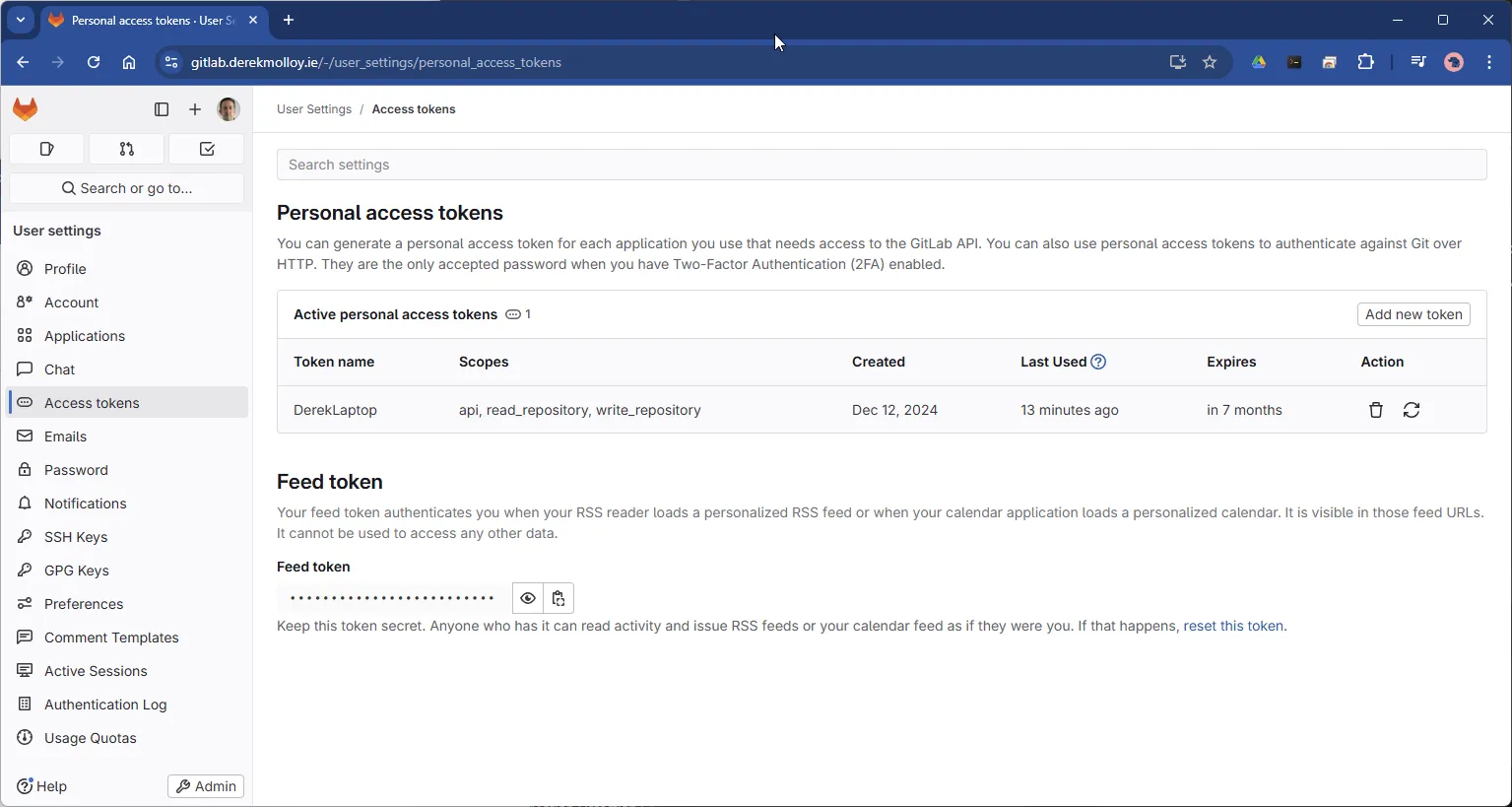
You can then clone the repository using the following syntax:
git clone https://username:<TOKEN>@gitlab.derekmolloy.ie/username/project-nameUse the VS Code GitLab Extension
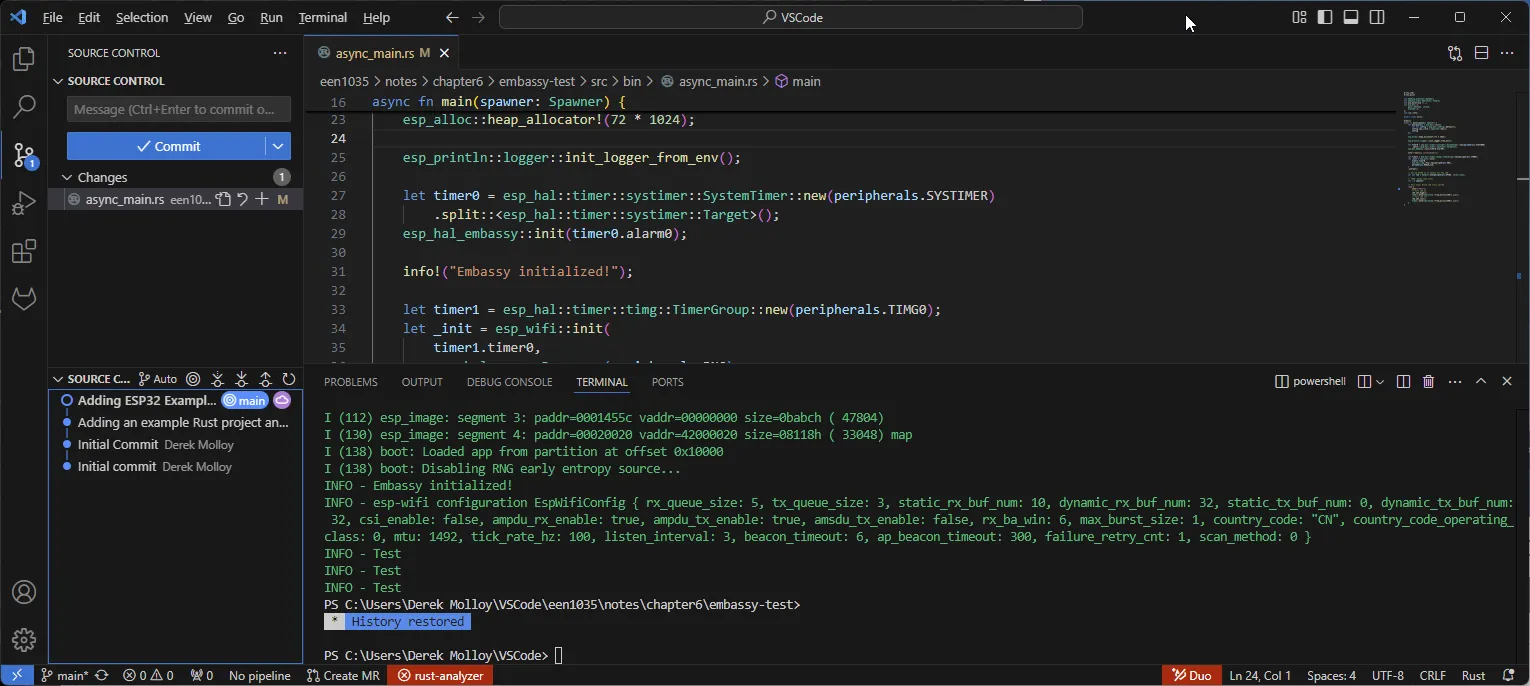
Section titled “Use the VS Code GitLab Extension”If you wish to link your VS Code application to the GitLab server, you can install the GitLab Workflow extension. This allows you to view issues, merge requests, and pipeline status directly within your editor. Use your Personal Access Token to authenticate when prompted.
Summary and Next Steps
Section titled “Summary and Next Steps”In this section, we have explored the foundational concepts of version control, focusing on a linear workflow where changes are made, staged, committed, and shared. In the next section, we will move beyond this simple flow to explore parallel development: how to use branches to work on multiple features simultaneously and how to use Merge Requests to collaborate with teammates.
🧩Knowledge Check
Section titled “🧩Knowledge Check”Which Git command is used to move changes from the Working Directory to the Staging Area?
What is the purpose of the 'git status' command?
According to the '50/72 rule', how long should the summary line of a commit message ideally be?
Which area represents the permanent history of your project on your local machine?
Why must you run 'git config' before your first commit?
© 2026 Derek Molloy, Dublin City University. All rights reserved.