
🦀Tutorial: Rust GUIs

Rust GUI Tutorial: Building an Edge Device Dashboard with egui
Section titled “Rust GUI Tutorial: Building an Edge Device Dashboard with egui”Welcome! This tutorial will guide you through building a graphical user interface (GUI) in Rust using egui and its “native” runner, eframe. egui is an immediate-mode GUI library that is easy to use, highly portable, and very efficient, making it a perfect fit for building dashboards and tools for edge devices. We’ll build a Edge Device Monitor step-by-step.
This tutorial assumes a basic understanding of Rust (structs, impl blocks, Vec, enums) and that cargo is set up. We carry the Edge Programming theme forward in this tutorial by creating a simple dashboard for monitoring a fictional edge device.
Good luck!
Question 0. Preparation and Setup
Section titled “Question 0. Preparation and Setup”First create a new project using the VSCode IDE and then use the **cargo **tool to create a new project, for example, in the c:\ directory.
Use the terminal in this directory to create a project for the tutorial — for example:
cargo new een1097_tutorial4cd een1097_tutorial4cargo add eframeOpen the folder in VSCode and you should see the following:
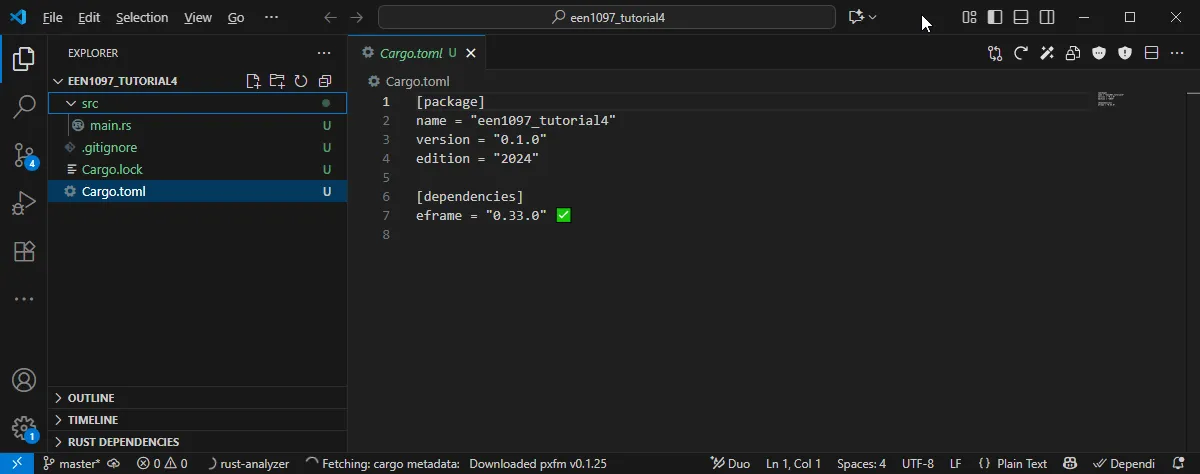
(Note: You may have a newer version of eframe than in this image (0.33.0), which may introduce some differences between my video solution and the code you need to write for the latest version. Version 0.x.x means that it will be in a constant state of change.)
Question 1. Your First egui Window
Section titled “Question 1. Your First egui Window”How do you create the most basic “Hello, World!” application with egui? This involves setting up the main application struct, implementing the eframe::App trait, and running the application. Begin by replace the contents of your src/main.rs with this starting code example:
use eframe::egui;
// 1. Define a struct for our application statestruct EdgeApp;
// 2. Implement the eframe::App trait for our structimpl eframe::App for EdgeApp {    // 3. The update method is called on every frame    fn update(&mut self, ctx: &egui::Context, _frame: &mut eframe::Frame) {        // 4. Show a "CentralPanel" which fills the entire window        egui::CentralPanel::default().show(ctx, |ui| {            // 5. Add a simple label to the UI            ui.heading("Hello EEN1097!");        });    }}
fn main() -> Result<(), eframe::Error> {    // 6. Configure the native window options    // Configure native window options    let options = eframe::NativeOptions {        viewport: egui::ViewportBuilder::default()            .with_inner_size(egui::vec2(400.0, 200.0))            .with_resizable(false),        ..Default::default()    };
    // 7. Run the native application    eframe::run_native(        "Hello egui", // Window title        options,        Box::new(|_cc| Ok(Box::new(EdgeApp))), // Create and box our app state    )}
When run, the window should appear as in Figure Q1a. The code works as follows:
EdgeAppis our application’s state. For now, it’s empty.- We implement the
eframe::Apptrait, which requires anupdatemethod. - The
updatemethod is where all GUI logic goes. It’s called for every frame (e.g., 60 times per second). egui::CentralPanel::default().show(ctx, |ui| ...)is the standard way to create a main panel that fills the window.ui.heading(...)is a widget. We add it to theui(User Interface) provided by the panel’s closure.eframe::run_nativestarts the application and opens a window.
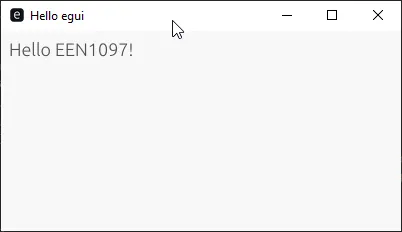
**Tasks: **Use the documentation for egui provided at: Docs.rs to adapt the provided code as follows:
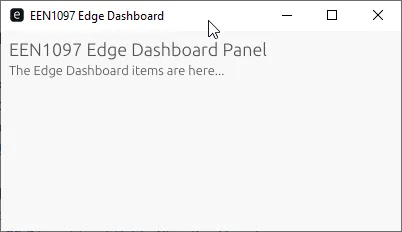
- Change the panel text to “EEN1097 Edge Dashboard Panel”
- Change the window title to be “EEN1097 Edge Dashboard”
- The Heading text in this example is added by using the
ui.heading()function, which is described here. Use the documentation to add aui.label()(scroll down in the left-hand column of the documentation) underneath the heading so that the interface now looks like Figure Q1b below:
Question 2. State and Buttons
Section titled “Question 2. State and Buttons”GUIs are all about state. In this question we examine how you store application state (like a counter) and add a Button to modify it?
Modify EdgeApp to hold a counter and add a Button to increment it. Perform the following steps:
- Add an integer field to the
EdgeAppstruct to hold the number of ping counts calledping_count - Add a “default” constructor that sets the initial value to
0. Use an implementation of theDefaulttrait for your struct (run_nativeuses this to create the initial app state.)
impl Default for EdgeApp { fn default() -> Self { Self { ping_count: 0 } }}- Use the documentation to add a
ui.buttonthat when clicked increases the ping count by 1. - Use a label to display the current ping count, as illustrated in Figure Q2.
Note: to invoke the Default trait we modify the final line of the run_native call as follows:
eframe::run_native( "EEN1097 Edge Dashboard", // Window title options, Box::new(|_cc| Ok(Box::new(EdgeApp::default()))), )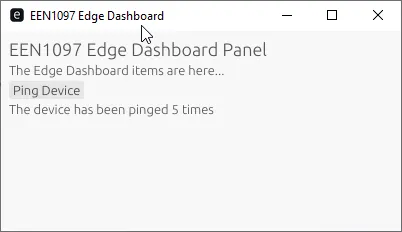
Question 3. Text Input and Responding
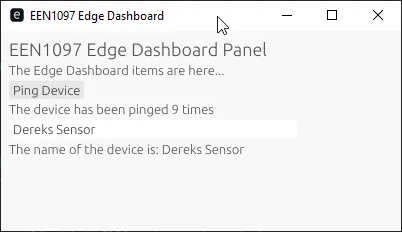
Section titled “Question 3. Text Input and Responding”The next question examines how we can get text input from a user. Complete the following steps to develop an interface as illustrated in Figure Q3:
- Adapt the
EdgeAppstruct to add adevice_namefield as aString. Modify theDefaultimplementation so that the default value is set to “Default Name”. - Modify the
EdgeAppto add aTextEditwidget to let the user set a name for the edge device, which is then displayed within a formatted label.
Question 4. Basic Layout with ui.horizontal
Section titled “Question 4. Basic Layout with ui.horizontal”In this question you investigate how to arrange widgets side-by-side. Use ui.horizontal to place a label and its corresponding widget on the same line, creating a simple form.
- Add a
ui.separatorto add some vertical space as per Figure Q4. - Use the
ui.horizontallayout to place the ping device button beside the message using the following example code:
ui.horizontal(|ui| { ui.label("Same"); ui.label("row");});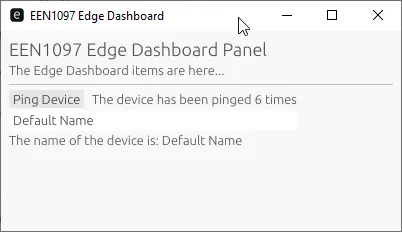
Question 5. Using Panels
Section titled “Question 5. Using Panels”In this section we examine how you create more complex layouts, like a sidebar for navigation and a main area for content.
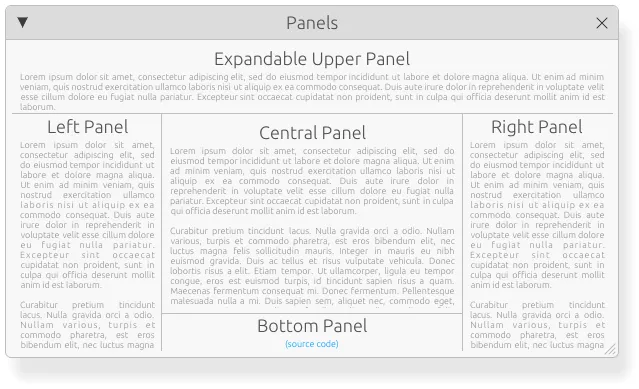
- Create a side panel
egui::SidePanelon the left that has the heading “Settings” in which we will place a “Device Name” label and the edit field. - Place the Device Monitor in a
egui::CentralPanel. - Tidy up the spacing so that it looks like Figure Q5b. Use
ui.set_width()which takes a normalised float — e.g., 0.3 would be 30% of the available space. Please review the expected outcome in Figure Q5b.
Question 6. Responding to Widgets
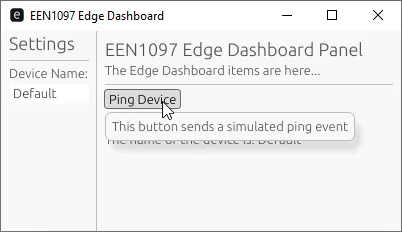
Section titled “Question 6. Responding to Widgets”In this question we examine how you can build GUIs that react to more than just clicks. Most widget methods return a Response object. Use this to show a Tooltip when the user hovers over the “Ping Device” button.
- Change the Ping Button so that it is an instance of
ui.button. For example,let ping_button = ui.button()... - Use the
on_hover_text()function to display the output in Figure Q6.
Question 7. Sliders and Data Binding

Section titled “Question 7. Sliders and Data Binding”A common task is setting numerical parameters. How do you use a Slider to control a value in your state? Add a slider to control a “Refresh Rate” for your device.
- Add a
refresh_ratefield to theEdgeAppstruct as af32and ensure that it is set to1.0by default, as illustrated in Figure Q7. - Add an
egui::Sliderto your interface with the range0.1..=10.0using the documentation at: https://docs.rs/egui/latest/egui/widgets/struct.Slider.html and use the.text()element to add a description to the slider. - Add a label that displays the Refresh Rate as defined by the slider value, as illustrated in Figure Q7.
Question 8. Enums and ComboBox

Section titled “Question 8. Enums and ComboBox”This question examines how you let a user choose from a fixed set of options. This is a perfect use case for a Rust enum and an egui::ComboBox which is described in the documentation here.
- Add a
DeviceModeenum and add three states “Idle”, “Active”, and “Error”. Please add the following line in front of the enum to allow for comparison#[derive(Debug, PartialEq)] - Add a
modefield to yourEdgeAppstruct that is aDeviceModethat defaults to Idle. - Add a “Device Mode” setting to the GUI using the
egui::ComboBoxas described in the linked website above.
The final outcome should function as illustrated in Figure Q8.
egui::ComboBox
Question 9. Basic Plotting with egui_plot

Section titled “Question 9. Basic Plotting with egui_plot”We now want to add a graph to the dashboard by adding a simple, static line plot. The egui_plot module can do this. Let’s plot some sample “historical data.” as illustrated in Figure Q9
egui_plot
- Modify the
Cargo.tomlfile to add the plot feature by using cargo as follows:
cargo add egui_plot- Add the following line to the top of your
main.rsfile.
use egui_plot::{Line, Plot, PlotPoints};- Add a
separator()and then some sample data as follows:
let historical_data: PlotPoints = vec![ [0.0, 1.0], [1.0, 3.0], [2.0, 2.0], [3.0, 4.0], [4.0, 3.5], ].into();- Build a line from the data plot points as follows:
let line = Line::new(historical_data) .name("Temp degC") .color(Color32::from_rgb(100, 200, 100));- Then render the plot widget:
Plot::new("device_plot") .height(200.0) .show(ui, |plot_ui| { plot_ui.line(line); });Question 10. Custom Graphics with egui::Painter

Section titled “Question 10. Custom Graphics with egui::Painter”As seen in Question 9, egui_plot is great for plotting linear data, but what if you want to draw custom graphics, like a live custom dashboard indicator? This requires using the Painter API to draw shapes directly. In this question you will generate a custom indicator that reacts to the Refresh Rate slider. The final version should look like Figure Q10.
egui::Painter
- Remove the new code from Question 9 to display the data using
egui_plot - The interface is becoming very ‘busy’ so we will write a new function and call this from the
update()function. - You are provided with the following code which should not be placed inside any other implementation blocks:
impl EdgeApp {    /// Draws a custom horizontal bar (0-10 Hz) below the current interface.    fn draw_refresh_rate_bar(&self, ui: &mut egui::Ui) {        use egui::{Color32, Pos2, Rect, Vec2, CornerRadius};
        ui.add_space(8.0);        ui.heading("Refresh Rate Indicator");        ui.label("Displays 0.0-10.0 Hz");
        // Reserve an area to paint into.        let desired_size = Vec2::new(ui.available_width(), 60.0);        let (response, painter) = ui.allocate_painter(desired_size,                  egui::Sense::hover());
        // The rectangle for our bar background.        let rect = response.rect;        let rounding = CornerRadius::same(8);
        // Background        painter.rect_filled(rect, rounding, Color32::from_gray(32));
        // Compute fill proportion (0.0-1.0)        let proportion = (self.refresh_rate / 10.0).clamp(0.0, 1.0);
        // Inner padding        let pad = 6.0;        let inner = Rect::from_min_max(            Pos2::new(rect.min.x + pad, rect.min.y + pad),            Pos2::new(rect.max.x - pad, rect.max.y - pad),        );
        // Filled width        let fill_w = inner.width() * proportion;        let fill_rect = Rect::from_min_max(            inner.min,            Pos2::new(inner.min.x + fill_w, inner.max.y),        );
        // Fill and outline        painter.rect_filled(fill_rect, CornerRadius::same(6),                            Color32::from_rgb(80, 180, 120));
// Overlay the current value as text let value_text = format!("Missing Code"); painter.text( inner.center(), egui::Align2::CENTER_CENTER, value_text, egui::FontId::proportional(14.0), Color32::WHITE, ); }}- Fix the “Missing Code” formatted string to function as per Figure Q10.
- Add a
separatorand call this code from your update function usingself.draw_refresh_rate_bar(ui);
Solutions
Section titled “Solutions”Video solutions for this tutorial will be linked here when recorded. Please attempt all questions before watching.
© 2026 Derek Molloy, Dublin City University. All rights reserved.