
7.2 Tooling and Workflow

Setting up a robust development environment is the first step toward becoming a productive Rustacean. This section covers the core tools that form the foundation of the Rust developer experience.
Installation and Configuration

Section titled “Installation and Configuration”Setting up Rust is a consistent experience across platforms, but each operating system requires a specific C/C++ toolchain to handle the final linking of your binaries. Figure 1 shows a simple Rust program being managed at the Terminal prompt using cargo. The program can also be executed using the small yellow triangle beside “Run” above the main() function (known as a CodeLens).
- The Core Toolchain Regardless of your OS, you should install Rustup from https://rustup.rs. This is the official installer that manages your Rust versions (
rustc) and the Cargo build system. - Platform-Specific Build Tools. Rust depends on a C linker. Use the instructions below for your specific environment:
- Windows: Install the C++ Build Tools for Visual Studio. This is often downloaded through the Visual Studio Installer and provides the
msvclinker. - macOS: Install the Xcode Command Line Tools by opening your terminal and running:
xcode-select --install. - Linux: Install the standard development packages. On Debian-based distributions (like Ubuntu or Raspberry Pi OS), use:
sudo apt update && sudo apt install build-essential.
- Windows: Install the C++ Build Tools for Visual Studio. This is often downloaded through the Visual Studio Installer and provides the
- Integrated Development Environment (IDE). I highly recommend VS Code for this book. Once installed, you must install the rust-analyzer extension from the Marketplace. This provides semantic syntax highlighting, code completion, and the critical “inlay hints” that help you understand Rust’s type inference.
- Toolchain Management. A common scenario when working with multiple targets (like the ESP32) is needing different toolchain versions simultaneously:
rustup default stable: Sets your global Rust environment to the latest stable version.rustup override set <toolchain>: Specifies a different toolchain (e.g., nightly or architecture-specific) for a particular project directory without affecting your global default.
I don’t recommend that you move away from the default configuration for the moment, so there is no need to perform any steps on toolchain management at this point.
Cargo: The Rust Build System
Section titled “Cargo: The Rust Build System”Cargo is the official project orchestrator for Rust, serving as its build system, package manager, and test runner. For developers transitioning from C++, Cargo represents a leap in productivity by replacing manual Makefiles or sometimes complex CMake configurations with a single, standardised toolchain.
At its heart, Cargo manages your project through two key files:
Cargo.toml: Where you declaratively define your project’s metadata, dependencies, and build features.Cargo.lock: A generated file that records the exact versions of every dependency used, ensuring reproducible builds across different machines and environments.
This approach means that whether you are building a simple command-line utility or a complex no_std firmware for an ESP32, the workflow remains identical: Cargo fetches the required libraries (crates) from the official registry (crates.io), resolves their dependencies, and invokes the compiler (rustc) with the correct flags for your target architecture.
Creating and Running a Project
Section titled “Creating and Running a Project”To create a new project from your terminal (e.g., with Windows PowerShell):
PS C:\Temp> cargo new hello_rustPS C:\Temp> cd .\hello_rust\PS C:\Temp\hello_rust> cargo runThis sequence of commands creates a new binary project named hello_rust (complete with a default Cargo.toml and source file), enters the project directory, and then builds and executes the application in a single step.
Key Cargo Commands
Section titled “Key Cargo Commands”| Command | Action |
|---|---|
cargo new <name> | Creates a new project with a default folder structure. |
cargo build | Compiles the project and its dependencies. |
cargo run | Compiles and executes the binary in one step. |
cargo check | Quickly verifies that code compiles without generating a binary. |
cargo test | Runs the project’s unit and integration tests. |
cargo clippy | Runs the Clippy linter to catch common mistakes and non-idiomatic code. |
cargo fmt | Auto-formats all source files according to the official Rust style guide. |
cargo doc --open | Generates HTML documentation from /// comments and opens it in a browser. |
cargo add <crate> | Adds a dependency to Cargo.toml without manual editing (Cargo 1.62+). |
VS Code Integration
Section titled “VS Code Integration”The rust-analyzer extension is very useful for Rust development in VS Code. It provides:
- Semantic syntax highlighting and code completion.
- Inlay hints: Automatically displaying inferred types and parameter names directly in your editor. This greatly simplifies understanding variable types for new Rust programmers.
- Diagnostics: Real-time error and warning reporting from
rustcandclippy. - CodeLenses: Clickable “Run” and “Debug” links directly above
mainand#[test]functions.
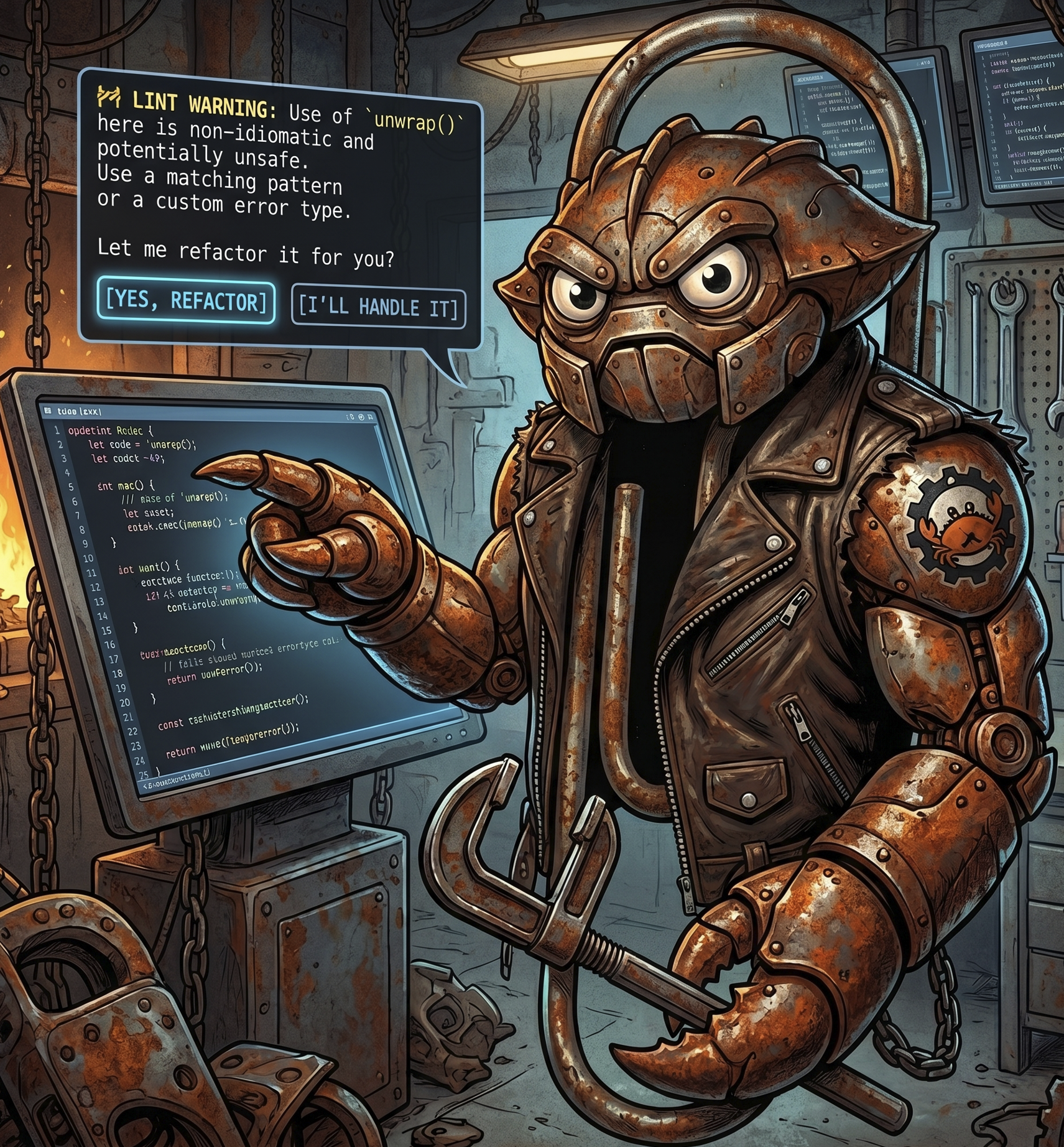
Figure 2. MS Clippy reimagined for Rust by Nano Banana 2.
VS Code Tasks (Advanced)
Section titled “VS Code Tasks (Advanced)”For commands you run frequently, you can define VS Code Tasks in a .vscode/tasks.json file. This is especially powerful in edge programming, where you often need to chain multiple steps together, such as compiling code, flashing it to a microcontroller like the ESP32, and then opening a serial monitor to view the output.
A possible tasks.json might look like this:

{ "version": "2.0.0", "tasks": [ { "label": "Flash ESP32", "type": "shell", "command": "cargo run --release", "problemMatcher": ["$rustc"], "group": { "kind": "build", "isDefault": true } } ]}Once defined, these tasks can be triggered via the Command Palette (F1) by typing “Run Task” or mapped to specific keyboard shortcuts. This allows you to move away from repetitive typing in the terminal and create a more integrated “one-click” development experience. See Figure 3.
🧩Knowledge Check
Section titled “🧩Knowledge Check”What is the primary role of the rust-analyzer extension in VS Code?
Why is the Cargo.lock file important for professional Rust development?
Which Cargo command would you use to quickly verify that your code compiles without the overhead of generating a binary?
In the context of edge programming, what is a key advantage of using VS Code Tasks (tasks.json)?
© 2026 Derek Molloy, Dublin City University. All rights reserved.