
4.2 Git and GitLab Continued
Introduction
Section titled “Introduction”This section is a continuation of our exploration into version control and collaboration, building directly upon the foundations laid in Git and GitLab. While the previous section focused on a linear workflow (e.g., moving files from your local machine to a remote repository) this section explores the more advanced and powerful features that make GitLab a complete DevOps platform.
Here we will focus on Parallel Development using branching strategies, which allow multiple developers (or a single developer working on multiple features) to maintain separate lines of history. We will also cover the collaborative “human” side of the platform, including Merge Requests, Issues, and To-Dos, which are essential for team-based projects. Finally, we will touch upon the basics of Continuous Integration and Continuous Deployment (CI/CD), demonstrating how automation can further streamline the development lifecycle.
Branches
Section titled “Branches”A branch in Git is essentially a lightweight, movable pointer to one of the commits in your repository. By default, every repository starts with a primary branch (usually named main). When you create a new branch, you are effectively creating a separate line of development that diverges from the main history, allowing you to work on changes without affecting the original codebase.
Branching is fundamental to modern version control and collaborative software engineering for several key reasons:
- Isolation of Work: It allows you to work on new features, bug fixes, or experiments in a contained environment. This ensures that the
mainbranch remains in a stable, deployable state at all times. - Parallel Development: Multiple developers (or even a single developer working on multiple tasks) can work on different features simultaneously. Each task has its own branch, ensuring that work-in-progress code does not interfere with the development of other features.
- Safe Experimentation: Branches provide a sandbox for trying out radical changes or new ideas. If an experiment fails, the branch can simply be deleted without any permanent impact on the project history.
- Structured Collaboration: Branches are the foundation of the code review process. Changes are typically developed on a feature branch and then merged back into the
mainbranch only after they have been thoroughly reviewed and approved by other team members (which is usually through a Merge Request).
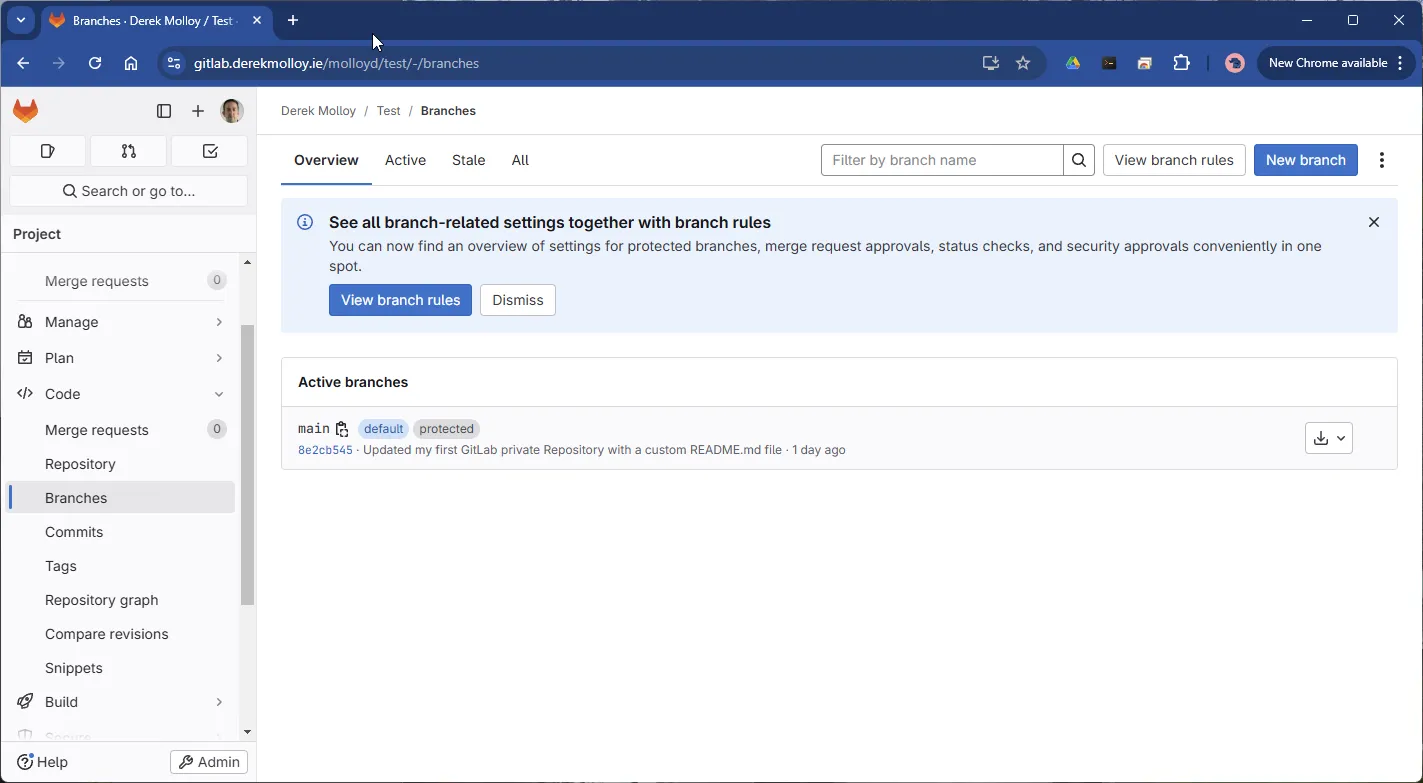
See the branch settings under Code -> Branches. You can see that the main branch is ‘protected’ meaning that it cannot be deleted, as illustrated in Figure 1.
You can create a new branch here using the New branch option. Here, I call this new branch “Update” in Figure 2:

This has pushed changes to the repository but has not made any changes until there is a new commit. You can now see the two branches (main and update) in the branches view.
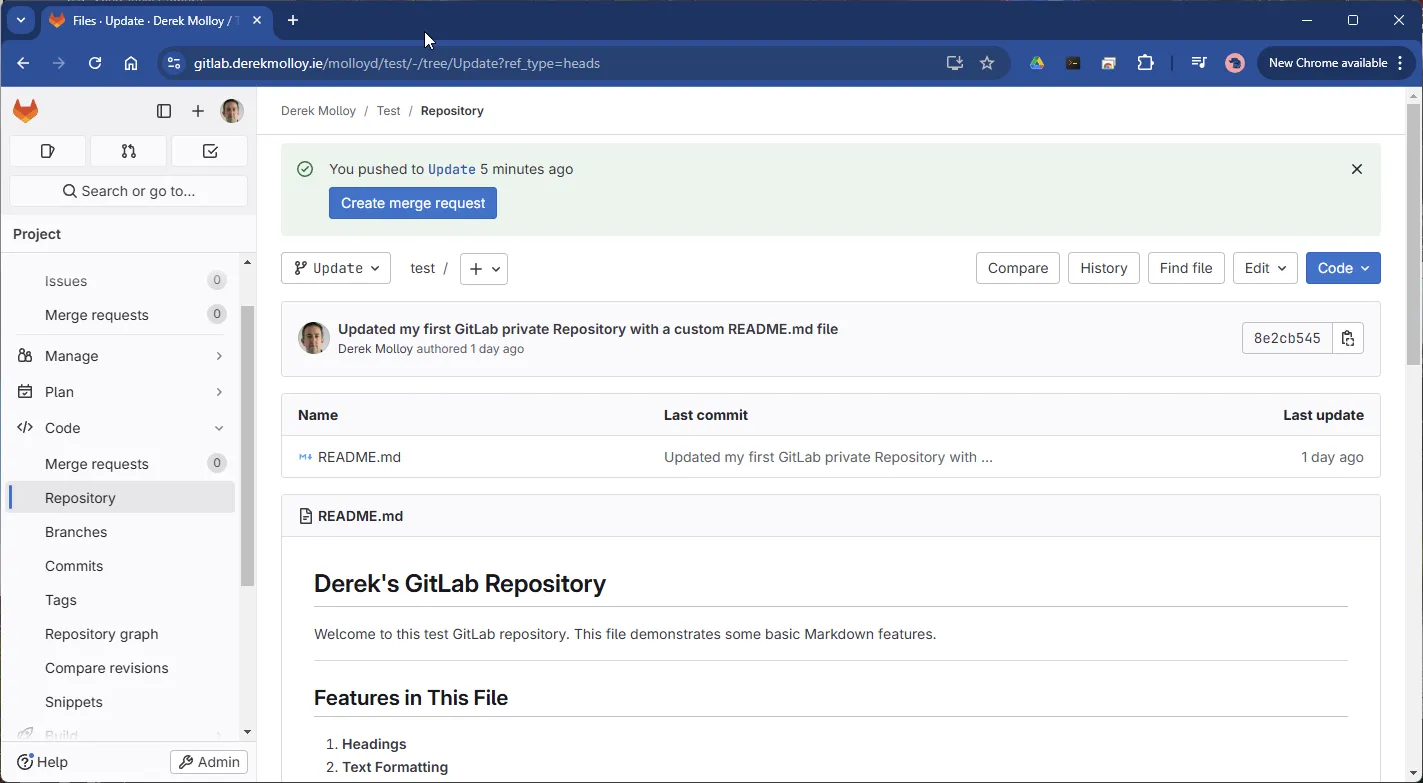
Go back to the main page and select the update branch as below using the dropdown option, as illustrated in Figure 3.
Open the README.md file using the Web Editor IDE as illustrated in the example below. The integrated editor in GitLab provides a convenient, browser-based environment that allows users to edit, commit, and collaborate on code directly within their GitLab projects. This eliminates the need for setting up a local development environment, making it especially useful for quick changes or contributing to projects from devices without pre-installed tools. It has features like syntax highlighting, live previews, and integration with GitLab’s CI/CD pipelines. It also supports collaboration through merge requests and inline code comments, supporting the development workflow for teams.

You can add create files in the editor directly using the New file option. For example, in Figure 5 I create a new Test.cpp file and add some code. Note that the syntax highlighting is automatically selected for C++ style.
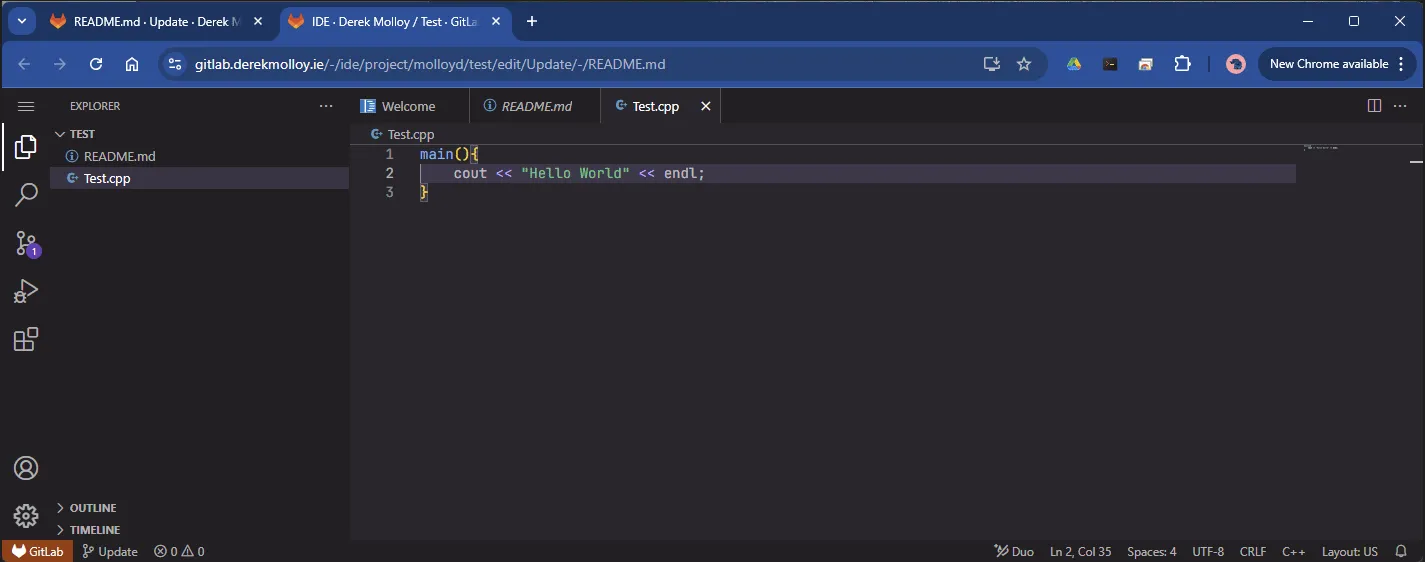
For some languages the editor will provide syntax hints. We can commit these changes to the project using the web editor.
Staging and Committing
Section titled “Staging and Committing”In Git, the process of saving changes is a two-step operation: staging followed by committing. This separation is intentional and provides developers with a high degree of control over how their project history is recorded.
Staging (The Index)
Section titled “Staging (The Index)”Staging (or adding) is the process of selecting specific changes that you want to include in your next snapshot. Think of the Staging Area (also known as the Index) as a loading bay where you gather and organise your work before it is officially shipped.
Key benefits of staging include:
- Granular Control: You do not have to commit every change you have made. Staging allows you to group related changes together, even if you have modified multiple files for different purposes.
- History Precision: By staging only what is necessary, you create clean, atomic commits that are easier to understand and, if necessary, revert.
- Workflow Integration: In the GitLab Web IDE, we can use the editor to stage the changes. Staging in Git involves preparing selected changes (e.g., using
git addat the command line) to be included in the next commit, creating a snapshot of those changes for version control.
Committing (The Snapshot)
Section titled “Committing (The Snapshot)”A commit is a permanent snapshot of the staged changes in your repository’s history. Each commit is identified by a unique SHA-1 hash and acts as a checkpoint that you can return to at any time.
Important considerations for committing:
- Historical Record: Once a commit is made, it becomes a part of the project’s permanent record. It includes metadata such as the author, timestamp, and a commit message.
- Communicating Intent: A well-crafted commit message is vital for collaboration. It should explain why the changes were made, not just what was changed.
- Standard Formatting: As noted in the previous section, best practice indicates that the associated commit message should ideally be 50 characters or fewer for the summary line, followed by a blank line, and an optional detailed description in subsequent lines, with each line wrapped at 72 characters. This keeps messages concise, readable, and adheres to best practices for version control.
So, for example:
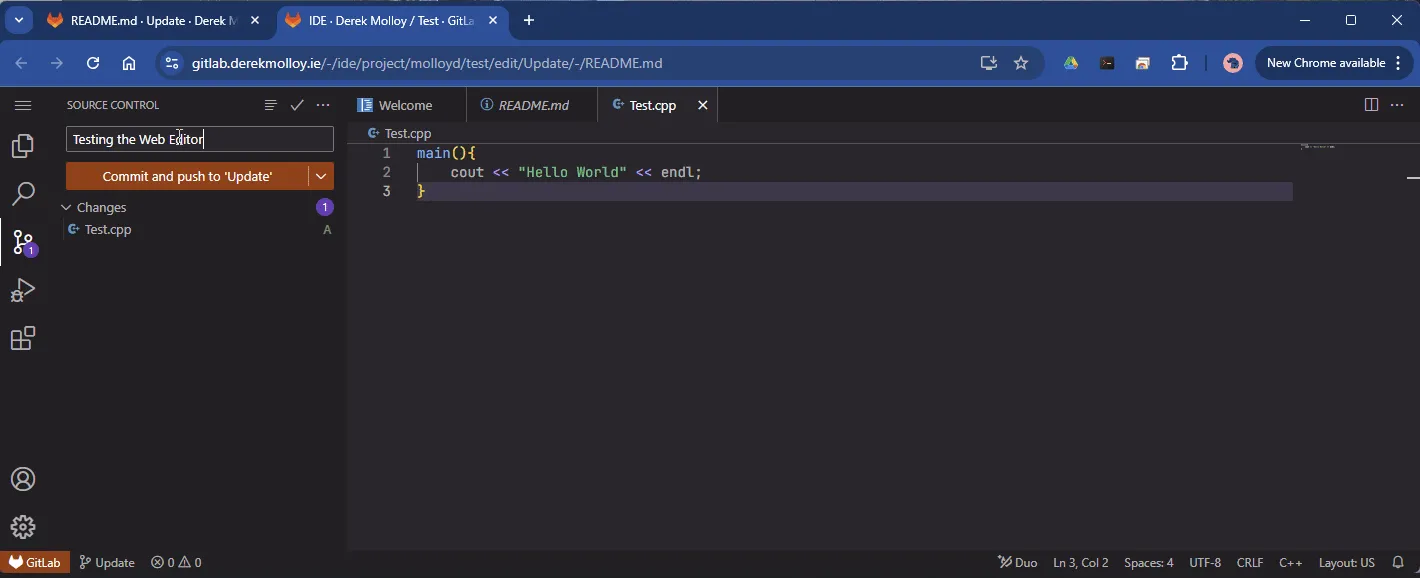
Test.cpp file is not present in the main branch, but is visible on the update branch.
Match Git Version Control Concepts
Merge Requests
Section titled “Merge Requests”A merge request (MR) in GitLab is a collaborative tool that facilitates the integration of changes from one branch into another, typically from a feature branch into the main branch. Merge requests provide a structured workflow for code review, ensuring that changes are thoroughly vetted before being merged. They include features like diff views to highlight changes, inline commenting for discussions, and automated checks using CI/CD pipelines. Merge requests encourage collaboration by allowing team members to suggest improvements, resolve conflicts, and maintain code quality standards. By documenting discussions and changes, they serve as a historical record of development decisions, contributing to a transparent and efficient development process.

Clearly these features are most important in a group project, but we will ‘pretend’ that we are working as part of a team. For the moment you will be the assignee and reviewer but in a large project this could be a senior member of the development team. These fields are typically:
- Assignee: The person responsible for addressing feedback, updating the code, and completing the merge request.
- Reviewer: Team members tasked with reviewing the proposed changes, ensuring quality and adherence to project standards.
- Milestone: A project goal or deadline that the merge request contributes to, helping track progress toward larger deliverables.
- Labels: Tags used to categorise or prioritise the merge request, such as
bug,enhancement, orurgent, making it easier to filter and manage. You can use the squash commits option if there are many different commits that you want to combine into a single merge request to keep the history clean.
Resolving Merge Conflicts
Section titled “Resolving Merge Conflicts”A merge conflict occurs when Git is unable to automatically reconcile differences between two branches during a merge. This typically happens when the same line of code has been modified differently in both branches, or when one branch deletes a file that another branch is modifying.
In the context of a Merge Request, GitLab will notify you if a conflict exists and often provides a web-based conflict resolution tool. Resolving a conflict involves manually choosing which changes to keep or combining the changes into a new, functional state. This is a critical skill in collaborative development, ensuring that the integration of diverse features does not break existing functionality.
Finishing with the following:
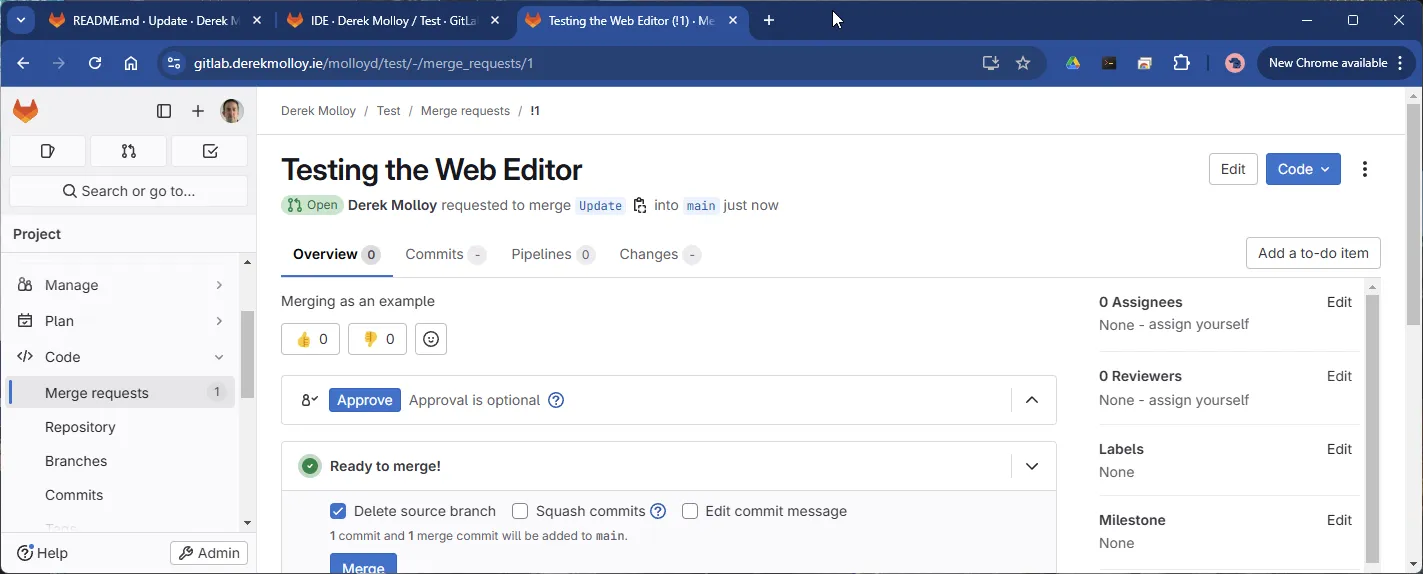
The reviewer (which is you in this case) can review the changes and even edit the merge request using the “Edit” option on the top right-hand side.
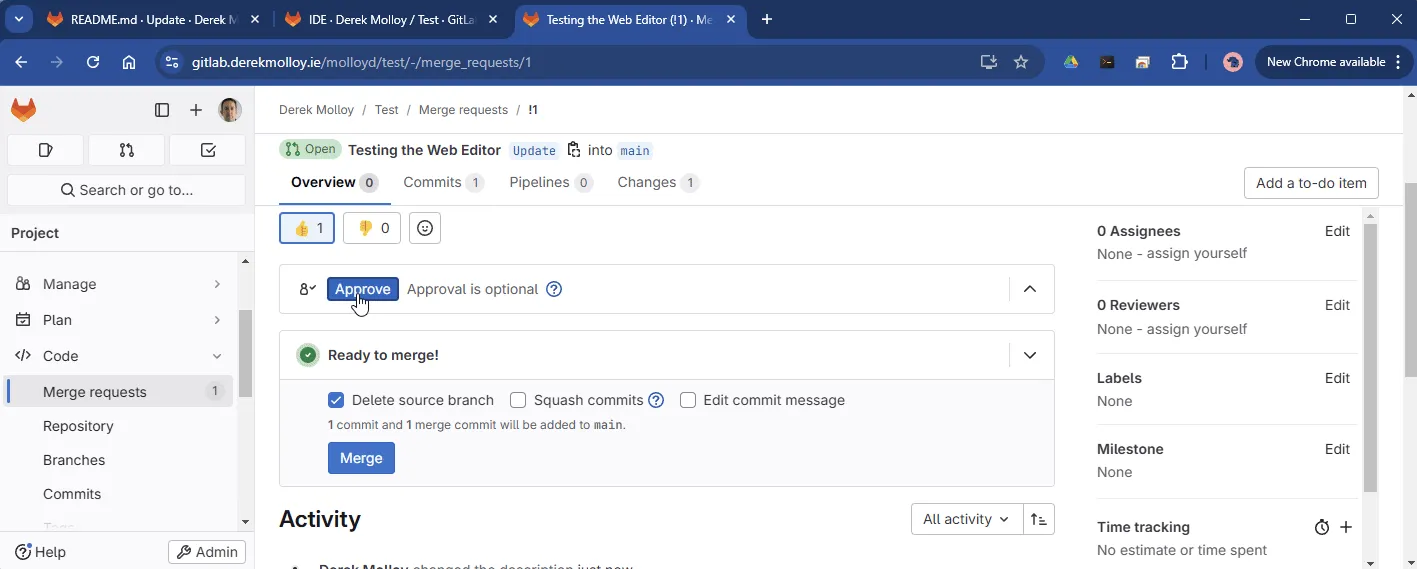
So as the approver, I can provide feedback and collaborate effectively. Here I edit the merge request (as reviewer) to add a few checkboxes just for a demo and approve the merge request:
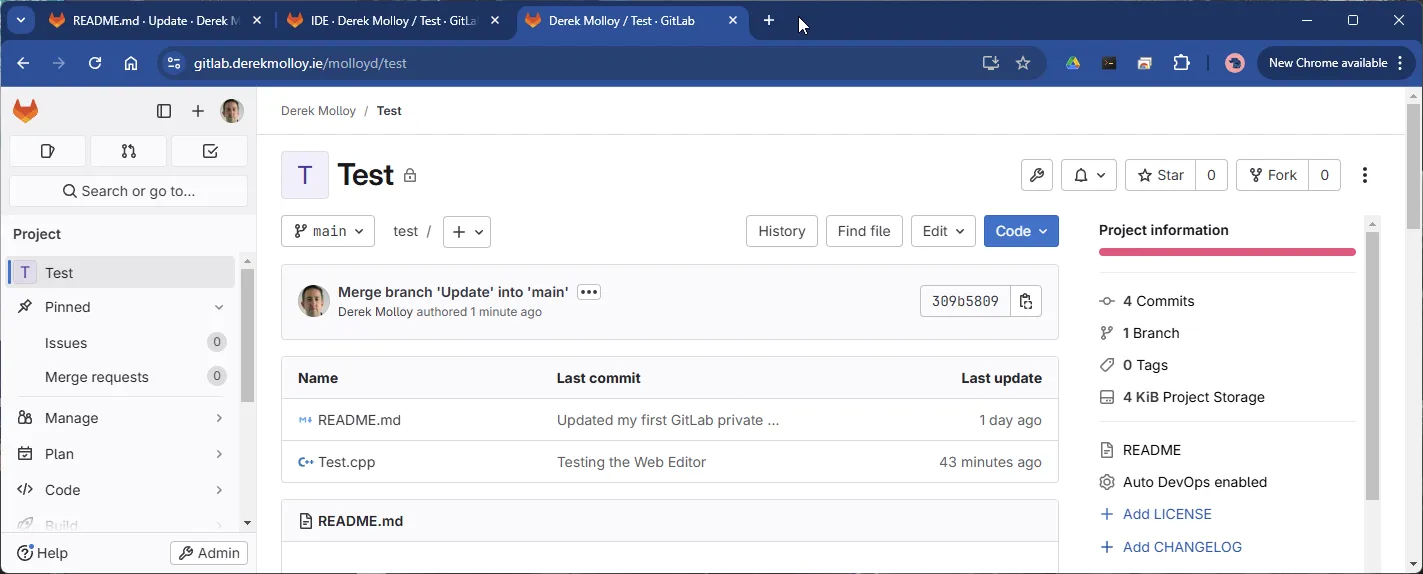
Now, when you go back to the root of the Test project you can see that the Test.cpp file that was part of the ‘update’ branch is now part of the main branch:
Once the merge is complete, the merge request is closed and the feature branch can be deleted to keep the repository tidy. The Code -> Commits history shows the full commit and merge history. You can even use the folder icon to the very right to see the state of the project at that point in time, as in Figure 11 below.
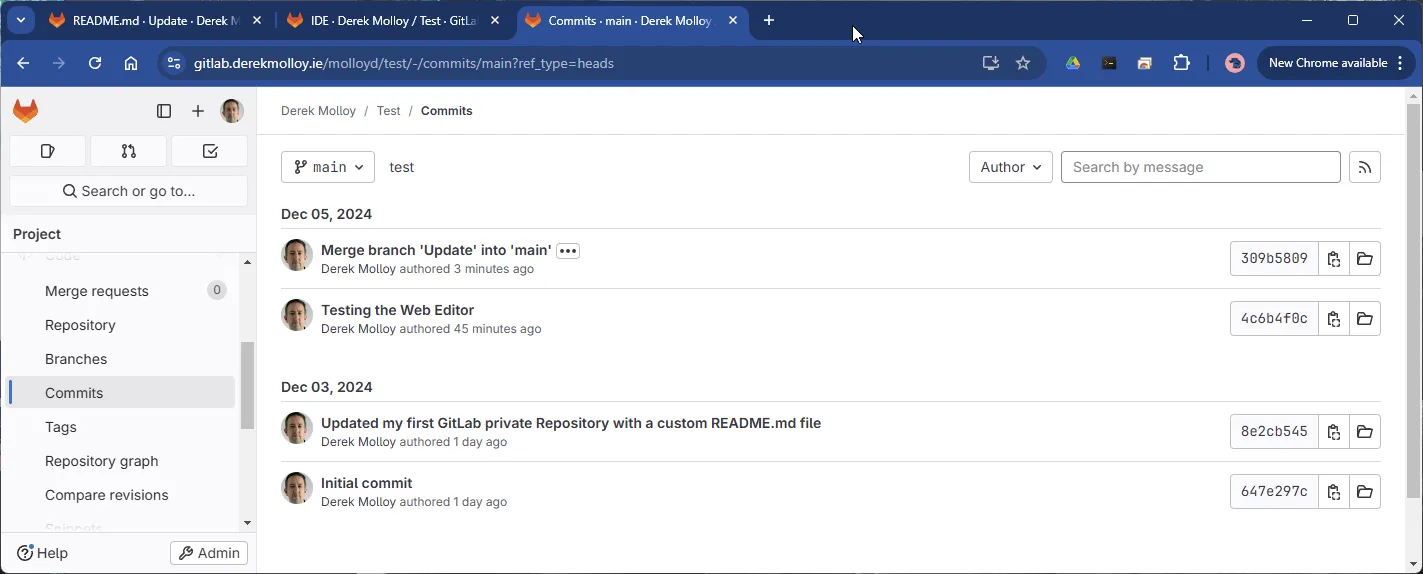
This is a full copy of the repository at each point in time. It uses diffs to achieve this so there is a very efficient storage of the repository history.
The Code -> Repository graph shows a graphical representation of the project evolution.

In a Git repository graph, tags are references to specific commits that are typically used to mark important points in the project’s history, such as releases or milestones. Unlike branches, tags are immutable and do not move as development progresses. They serve as a convenient way to identify stable versions or significant events in the commit history, allowing developers to easily refer back to them. Git supports two types of tags:
- Lightweight Tags: Simple pointers to a commit, akin to a branch without the ability to move.
- Annotated Tags: Contain additional metadata such as the tagger’s name, date, and a message, making them ideal for marking releases.
Tags appear in the Git graph as static labels associated with a commit, providing context and aiding navigation through the repository. In Figure 13 below, I created a new tag (Code -> Tags) called Release and added it to the current main branch.

🧩Knowledge Check
Section titled “🧩Knowledge Check”Why is adding a description of the merge request helpful?
Similar to a branch, can you check out a tag and view the files at this point in history?
Staging in the GitLab Web IDE is the same as which Git command line operation?
How can you create a new branch in the GitLab interface?
GitLab Collaborative Tools
Section titled “GitLab Collaborative Tools”To-Dos
Section titled “To-Dos”The TODO feature in GitLab helps developers track and prioritise tasks that require their attention. It automatically generates TODOs for activities such as being assigned to an issue or merge request, receiving comments, or mentions in discussions. Users can manually create TODOs as reminders for tasks they plan to address later. The feature consolidates all pending tasks into a personal TODO list, making it easier to stay organised and focused on actionable items across projects. Once a task is addressed, users can mark it as done to maintain an up-to-date list of responsibilities.
In group projects, use @mentions to notify or assign tasks to other members — the same convention familiar from platforms such as Bluesky and X.
Issues
Section titled “Issues”Issues in GitLab are tools for tracking tasks, bugs, feature requests, or any work item related to a project. Similar to tools like Jira, they provide a structured way to collaborate by allowing team members to discuss, prioritise, and assign responsibilities. Each issue includes fields for a title, description, assignees, labels, milestones, and discussions, enabling clear communication and organisation. Issues integrate seamlessly with other GitLab features, such as boards, merge requests, and CI/CD pipelines, to ensure efficient workflow management and progress tracking.
External Integration: Jira
Section titled “External Integration: Jira”While GitLab provides a robust native issue-tracking system, many large-scale engineering organisations utilise Jira for advanced project management. Jira offers sophisticated features for Agile development, such as customisable Scrum and Kanban boards, detailed sprint planning, and cross-project reporting.
The power of using GitLab and Jira together lies in their integration:
- Traceability: By referencing a Jira issue ID (e.g.,
PROJ-123) in a GitLab commit message or merge request, the two systems are automatically linked. This allows project managers to see development progress directly in Jira, while developers can click through to the relevant requirement from GitLab. - Workflow Automation: GitLab can be configured to automatically transition the status of a Jira issue (e.g., from “In Progress” to “Done”) when a merge request is approved and merged.
- Separation of Concerns: This setup allows the development team to stay focused on the code within GitLab, while providing broader stakeholders and product owners with high-level visibility into the project’s health within Jira.
Labels
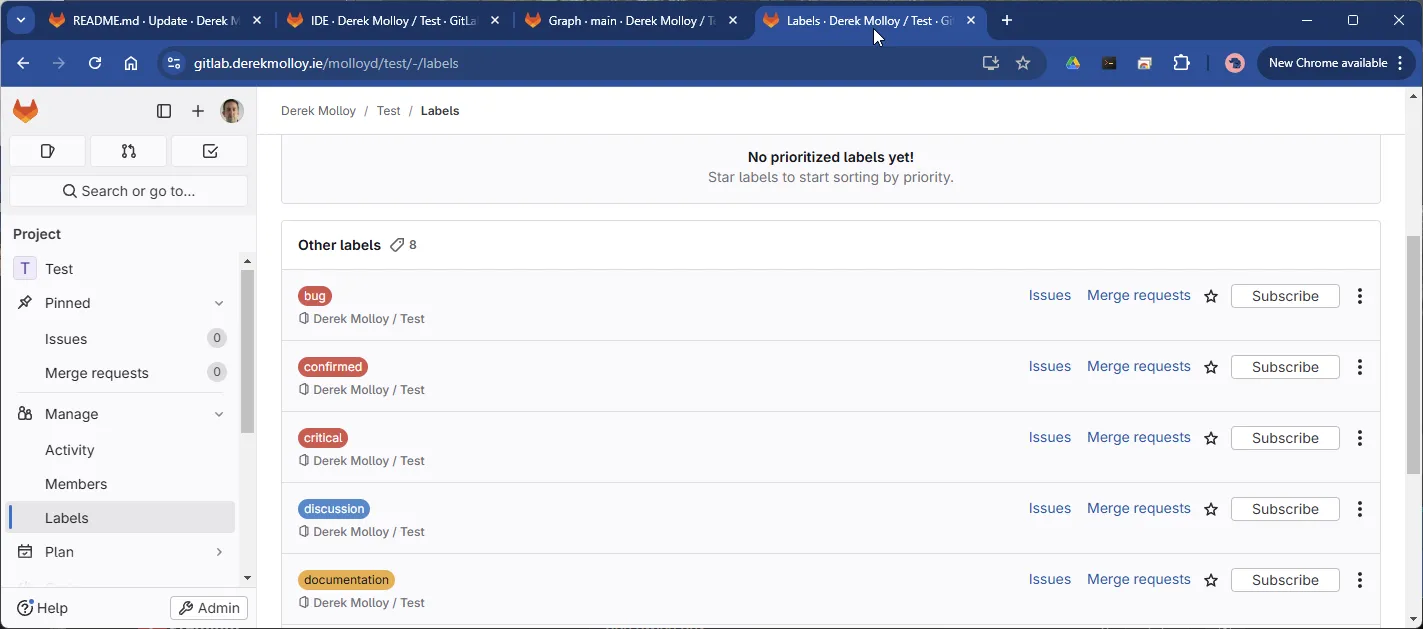
Section titled “Labels”Labels in tools like GitLab and Jira are tags used to categorise and organise tasks, issues, or merge requests. They provide a quick way to identify the purpose, priority, or status of work items, such as identifying a bug, enhancement, or urgent item. Labels streamline filtering, searching, and tracking, allowing teams to efficiently manage workflows and focus on specific areas of interest or concern. Here I have added the default set of labels to my project using Manage->Labels.
Match Collaborative & Organisation Concepts
Continuous Integration and Continuous Deployment (CI/CD)
Section titled “Continuous Integration and Continuous Deployment (CI/CD)”In GitLab, Continuous Integration and Continuous Deployment/Delivery are practices that automate the software development lifecycle to improve efficiency and quality.
- Continuous Integration (CI): Automates the process of integrating code changes from multiple contributors into a shared repository. It typically involves running automated tests and builds to ensure that new changes do not break the existing codebase.
- Continuous Deployment/Delivery (CD): Automates the deployment of code to production or other environments.
- Continuous Delivery ensures the software is always in a deployable state, requiring manual approval to release changes.
- Continuous Deployment extends this by automating the release process, pushing updates to production without manual intervention.
GitLab provides an integrated CI/CD system where developers can define pipelines in a .gitlab-ci.yml file to automate testing, building, and deployment workflows, streamlining the software delivery process.
The Importance of CI/CD in Edge Development
Section titled “The Importance of CI/CD in Edge Development”In the context of edge development, CI/CD tools (and their equivalents like GitHub Actions) are important for maintaining the reliability of remote systems. Edge devices are often deployed in locations that are difficult or impossible to access physically, making manual updates risky and inefficient.
Cross-Compilation and Heterogeneous Environments
Section titled “Cross-Compilation and Heterogeneous Environments”Edge ecosystems often consist of diverse devices with different architectures (ARM, x86, etc.). CI/CD allows you to build and cross-compile binaries for multiple targets simultaneously. In a GitLab pipeline, this is typically handled by using specific Docker images that contain the necessary toolchains.
For example, a .gitlab-ci.yml job for an ARM-based edge device might look like this:
build-arm: image: multiarch/crossbuild script: - arm-linux-gnueabihf-g++ main.cpp -o edge_app artifacts: paths: - edge_appHardware-in-the-Loop (HIL) Runners
Section titled “Hardware-in-the-Loop (HIL) Runners”While standard CI/CD runs on cloud servers, GitLab allows you to register Custom Runners. In edge development, you can install the GitLab Runner software directly on your target hardware (e.g., a Raspberry Pi/BeagleBone in a test rig). This enables Hardware-in-the-Loop (HIL) testing, where the pipeline triggers actual execution on physical hardware to verify GPIO interactions, sensor readings, or power consumption before deployment.
Managing Large Assets with Git LFS
Section titled “Managing Large Assets with Git LFS”Edge projects often involve large binary assets such as firmware blobs, FPGA bitstreams, or machine learning models. Standard Git is not designed to track changes in large binaries efficiently. Git LFS (Large File Storage) replaces these large files with tiny pointer files inside Git, while storing the actual file content on a remote server. This keeps your repository small and fast to clone.
Dependencies and Git Submodules
Section titled “Dependencies and Git Submodules”Edge development frequently relies on Board Support Packages (BSPs), vendor SDKs, or shared drivers. Git Submodules allow you to keep another Git repository as a subdirectory of your own. This is essential for maintaining a specific, reproducible version of a hardware abstraction layer without manually copying files into your project.
In summary, the importance of CI/CD in edge development is:
- Safe Remote Deployment: Implement “canary” releases by pushing updates to a small subset of devices first.
- Security and Compliance: Automatically scan for vulnerabilities in code or dependencies before they reach the field.
- Consistency: Ensure that the exact same binary version is deployed across the entire fleet.
Match Edge CI/CD Concepts
Final Thoughts
Section titled “Final Thoughts”In this section, we have transitioned from simple, linear version control to the advanced collaborative workflows that define modern software engineering. By mastering branching, you can isolate your development efforts and experiment safely without compromising the stability of the primary codebase. The two-step process of staging and committing provides the precision necessary for maintaining a clear and navigable project history through atomic commits.
Finally, we explored how Merge Requests act as the focal point for collaboration, integrating code review and automated checks into the development lifecycle. The introduction of GitLab’s collaborative tools (e.g., Issues, To-Dos, and Labels) demonstrates how technical development is inextricably linked with effective project management.
As you progress into more complex edge development projects, these tools will become indispensable for managing hardware-specific code, coordinating within teams, and ensuring the long-term reliability of your systems.
Further Areas for Discussion
Section titled “Further Areas for Discussion”For those looking to deepen their expertise, the following topics are recommended for further study:
-
Branching Strategies: Frameworks like Git Flow (with dedicated
develop,release, andhotfixbranches) and GitHub Flow / trunk-based development (short-lived feature branches merged directly tomain) provide structured answers to the question “how do large teams coordinate complex releases?” Understanding these workflows is a prerequisite for contributing to any mature embedded codebase. -
Rebasing vs. Merging:
git mergecreates an explicit merge commit that preserves the full branch history.git rebasereplays your commits on top of the target branch, producing a clean, linear history as if the branch had never diverged. Rebase is increasingly favoured by teams that value a readablegit log, but it rewrites commit hashes and should never be used on commits already shared with others. -
Cherry-picking:
git cherry-pick <hash>applies a single commit from one branch onto another without performing a full merge. This is the standard tool for backporting a specific bug fix frommainto a stable release branch that cannot safely receive all ofmain’s changes. -
Git Hooks: Scripts stored in
.git/hooks/that Git executes automatically at specific points — before a commit (pre-commit), before a push (pre-push), after a merge (post-merge), and others. Apre-commithook can run linters, formatters, or unit tests and reject the commit if they fail, enforcing code quality standards without relying on human discipline. -
git bisect: A binary-search command that systematically identifies the exact commit that introduced a bug. Mark a known-good commit and a known-bad commit, then follow Git’s prompts to test intermediate commits. Git halves the search space each time. Essential for debugging regressions in long-running embedded projects where the exact breaking change is unknown.
🧩Final Knowledge Check
Section titled “🧩Final Knowledge Check”What is the purpose of the 'Issues' feature in GitLab?
What does the keyword 'draft' in a merge request title do?
Which syntax can be typed in a comment to create a To-Do for another user?
© 2026 Derek Molloy, Dublin City University. All rights reserved.